

A simple guide for Australian families who don't want to lose years of precious memories
You probably assume your family photos are safe.
After all, they're on your phone, your tablet, your computer — and maybe they're even in the cloud.
But here's a question I often ask families:
If your phone stopped working tomorrow, would you be absolutely certain your photos could be recovered?
Most people answer:
"I think so."
The problem is that “I think so” isn't the same as knowing.
Photos can end up scattered across phones, computers, cloud accounts, USB drives and old devices. Backups can also stop without us realising because storage is full, an account has been signed out, or syncing has been paused.
The good news is that you don't need to be particularly technical to check.
Why Backing Up Your Family Photos Matters
Family photos are often some of the most valuable digital assets we own.
They capture:
family holidays
children's milestones
weddings
grandchildren growing up
birthdays and celebrations
videos and voices of people we love
Unlike a forgotten subscription or an old online account, some of these memories simply cannot be replaced.
That's why knowing where your photos are stored and whether they're actually backed up is such an important part of organising your digital life.
Step 1: Check If Your Phone Is Actually Backing Up Photos
Many people assume their phone automatically backs up everything.
Sometimes it does.
Sometimes it doesn't.
On an iPhone
Open Settings
Tap your name at the top
Tap iCloud
Tap Photos
Check whether Sync this iPhone is turned on
If it is switched off, your photos may only exist on your device.
On Android
Open Google Photos
Tap your profile picture
Select Photos settings
Tap Backup
Confirm backup is turned on
If backup is off, your photos may not be protected.
Step 2: Check When the Last Backup Happened
A backup from six months ago isn't much help if you've taken hundreds of photos since then.
Look for:
Last backup date
Last sync date
Any warnings or error messages
If your phone says:
Waiting for Wi-Fi
Storage full
Backup paused
Sign-in required
your photos may not be uploading.
Step 3: Make Sure You Have Enough Cloud Storage
One of the most common reasons backups stop working is a lack of storage.
Many families don't realise their cloud account filled up months ago.
Apple iCloud
Open:
Settings → Your Name → iCloud
Check how much storage is being used.
Google Photos
Open:
Google Photos → Profile Picture → Account Storage
Look for any storage warnings.
If storage is full, new photos may no longer be backing up.
Not Sure Where All Your Photos Are?
If this is already making you think:
“I'm not even sure where all our photos are stored…”
that's exactly why I created the Digital Photo Rescue Plan.
It's a practical step-by-step guide to help you:
✓ find photos scattered across devices and accounts
✓ create a Photo Location Inventory
✓ work out what's actually backed up
✓ identify photos that may be at risk
✓ bring everything into a simple organisation system
You don't need to organise thousands of photos in one weekend. The first step is simply knowing what you have and where it is.
Step 4: Test the Backup
This is the step most people skip.
A backup only matters if you can actually access it.
Try this:
Log into your cloud account from another device.
Open your photo library.
Confirm recent photos appear.
Open several photos to ensure they load correctly.
If you can see your latest photos on another device, that's a good sign your backup is working.
Step 5: Check Older Devices
Many families have photos scattered across:
Old phones
Old laptops
USB drives
External hard drives
Tablets
These devices often contain photos that were never transferred into a central location.
Take some time to check:
Old iPhones
Android phones
Family computers
Memory cards
External storage devices
You may discover years of forgotten memories.
Step 6: Create a Simple Photo Organisation System
Once you've confirmed your photos are backed up, consider organising them.
A simple structure might include:
Family Photos
Holidays
Birthdays
Weddings
Grandchildren
Important Documents
Birth certificates
Marriage certificates
Property documents
Family Videos
Home videos
Special occasions
Voice recordings
Keeping everything organised makes it much easier for family members to find important memories when they need them.
Step 7: Create a Simple Photo Organisation System
Once you know where everything is and your important photos are protected, you can start organising them.
You might organise photos by:
Year
2024
2025
2026
or by important events:
Family Photos
Holidays
Birthdays
Weddings
Grandchildren
Family celebrations
There isn't one perfect system.
The best system is one that you understand, can maintain and can explain to someone else.
What Happens If Something Happens to You?
This is a question many families avoid.
But it matters.
If family members don't know:
Which cloud account holds your photos
Which email address was used
How to access the account
Where important digital information is stored
valuable memories can become difficult—or impossible—to recover.
That's why documenting your digital life is just as important as backing it up.
A Simple Next Step
If you're not sure where your family's photos are stored, start by downloading our free Digital Asset Checklist.
It will help you identify:
Where your photos are stored
Which cloud accounts you use
What information your family may need in the future
Important digital assets that are often overlooked
Because the best backup system isn't just one that works today.
It's one your family can understand tomorrow.
Organise photos, passwords, accounts, important documents, and digital assets with our guided journal system.
Frequently Asked Questions
-
Don't rely only on seeing that a backup setting is switched on. Check the account your photos are being backed up to and confirm that recent photos are actually appearing there.
-
Check current and old phones, tablets, computers, external hard drives, USB drives, memory cards and any cloud photo or storage accounts you've used over the years.
-
Be careful. Some cloud photo services sync your photo library rather than simply creating an independent backup. Deleting a photo from one device can sometimes remove it elsewhere as well. Make sure you understand how your particular service works before deleting anything.
-
Don't start by trying to organise every photo. First create an inventory of where your photos are stored and make sure important photos are protected. Then bring them into a manageable system and organise them gradually.
Related Articles
How to Set Up a Digital Legacy System for Ageing Parents Without the Tech Confusion
Help Organising Online Accounts: A Simple Guide for Families
Ready to Rescue Your Family Photos?
If your photos are scattered across phones, computers, cloud accounts and old devices, you don't have to figure out everything at once.
The Digital Photo Rescue Plan gives you a practical process for finding, protecting and organising your family photos — including a Photo Location Inventory you can complete as you go.
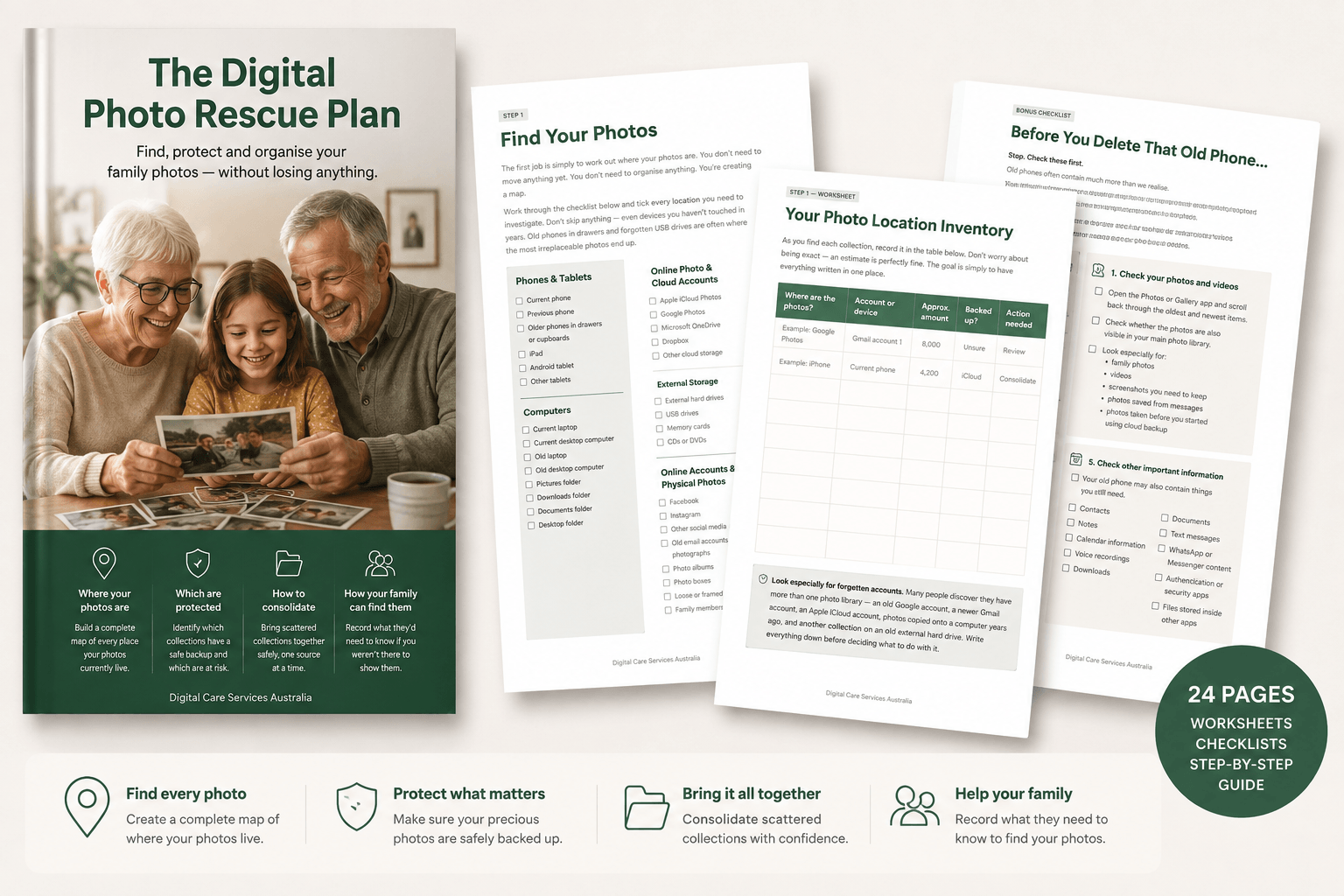
Find, protect and organise your family photos — without losing anything.
A simple step-by-step downloadable guide to help you work out where your photos are, protect them properly and bring scattered photo collections together.
Instant Digital Download | $7 AUD
Do you actually know where all your photos are?
Your current phone might contain thousands.
But what about your old phone?
The photos on your computer?
Google Photos?
iCloud?
That external hard drive in the cupboard?
The USBs you've kept because you're not quite sure what's on them?
And all those printed family photographs?
For many of us, years of precious family memories are scattered across different devices, accounts and storage systems.
The worrying part isn't just that they're disorganised.
It's not knowing whether everything is actually backed up — or whether some photographs exist in only one place.
The Digital Photo Rescue Plan gives you a simple process for finding your photographs, protecting them and gradually bringing everything together.
No complicated technology.
No need to sort 20,000 photos in one weekend.
Just a calm, practical plan you can work through one step at a time.
